JFilters - YOOtheme Pro Integration

YOOtheme Pro simplifies the customization of the Joomla pages, favoring speed, without the need to write a single line of code. We were asked several times, whether the JFilters results can be customized through YOOtheme Pro and we made that possible.
Using JFilters with YOOtheme Pro you can have a content filtering extension, integrated in your template, whose results are fully customizable using the Page Builder. Additionally you can create content pages (i.e. Article collections) by almost any possible criteria.
For that to happen, you have to download and install both JFilters and our JFilters - YOOtheme Pro integration plugin.
After installing the plugin, please go to your System > Plugins , find the plugin named "System - JFilters for YOOtheme Pro" and enable it.
Now you can start customizing your JFilters results in YOOtheme Pro.
Go to System > Site Template Styles, select "yootheme Default" and then click on the "CUSTOMIZE" button.
Now that that the Page Builder is open, you need to load the JFilters results page. Hence, either perform a filtering using the JFilters filtering module, or click on the JF menu item, if it's available.
Otherwise YOOtheme could not recognize the loaded page.
Create the Results Layout
Once the results page is loaded, go to TEMPLATES and click on the "NEW TEMPLATE" button. Then give a name to your template and select "JFilters Results" as Page.
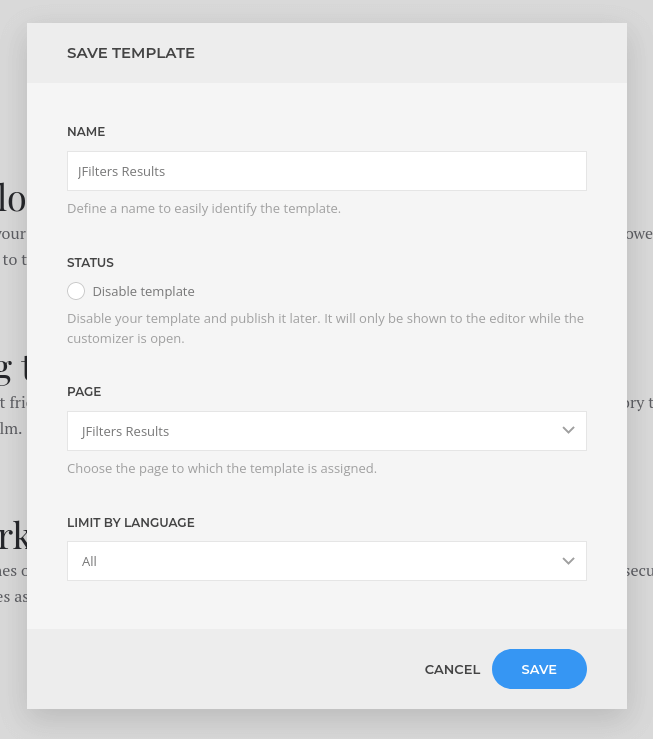
After saving the template, click on the template you created.
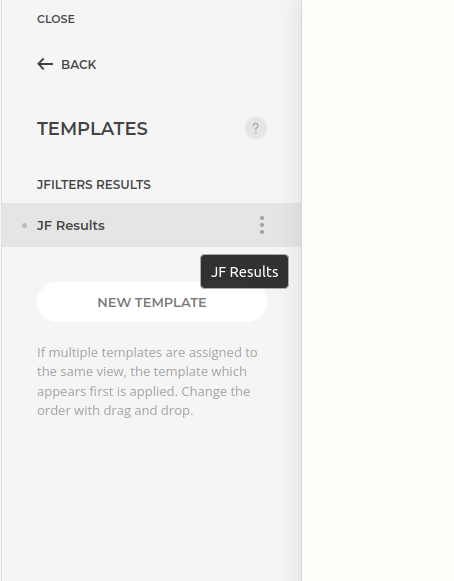
and then click on the "NEW LAYOUT" button to create your layout.
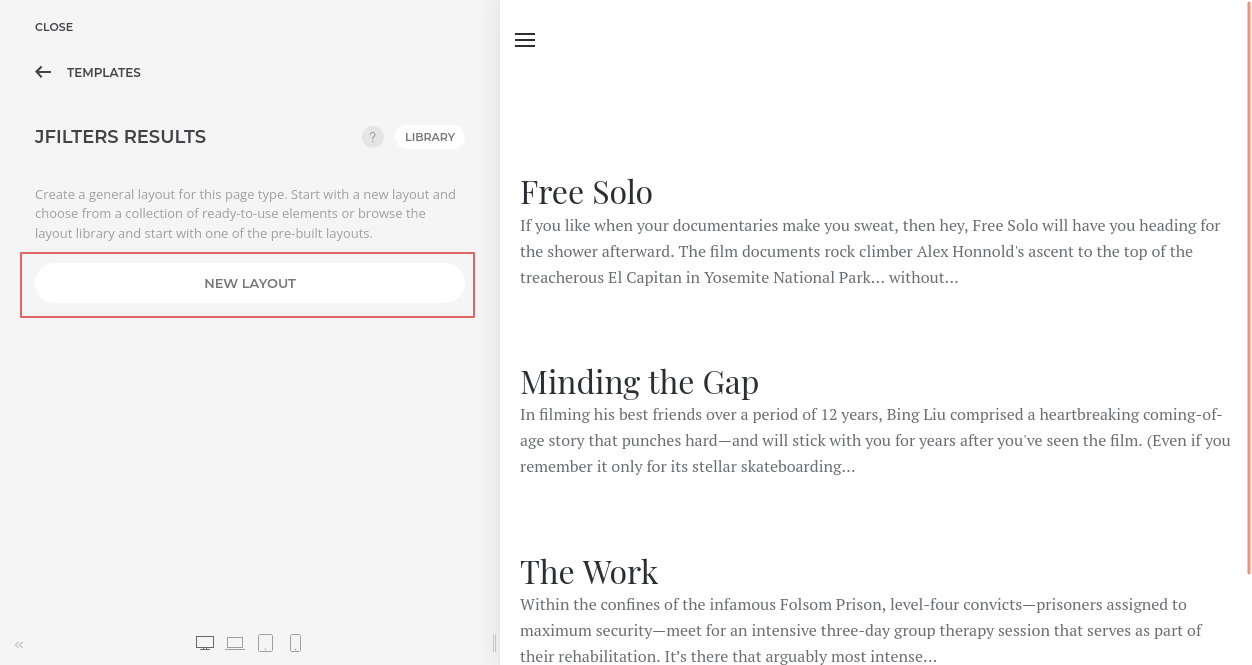
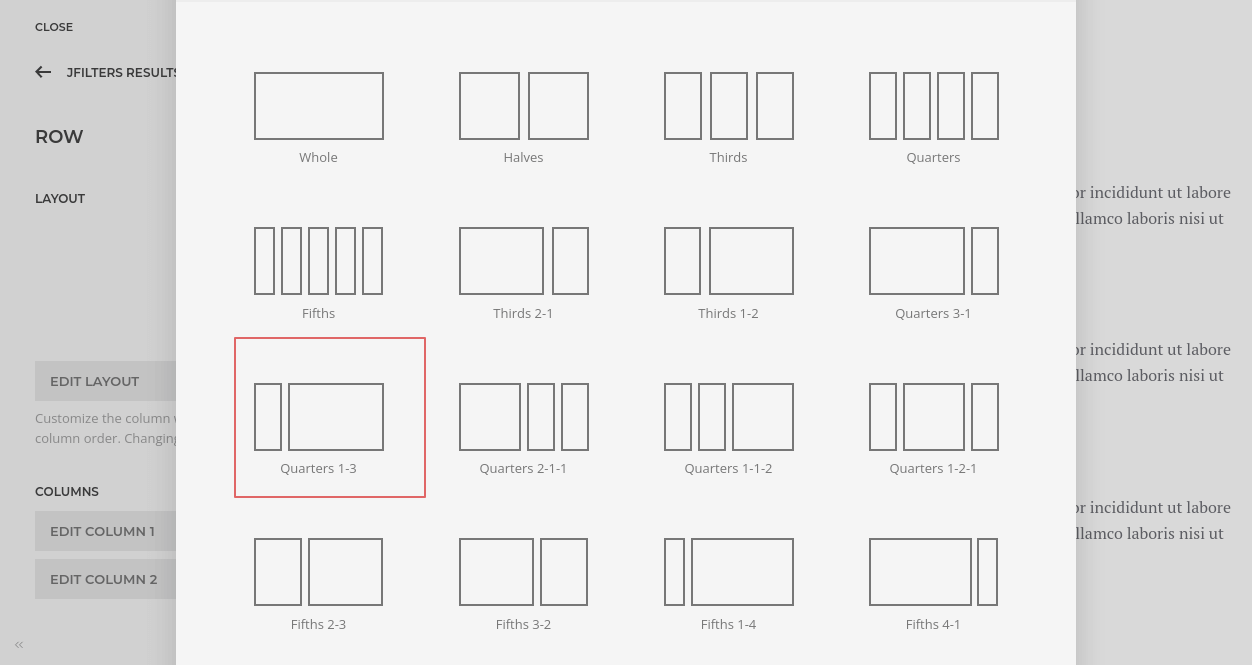
We suggest editing your page's main section, and format it in a way that allows you to have a main column for the results and a column for the filtering module.
Now in your section area, press the "+" to add an element and in the modal window, select "Grid".
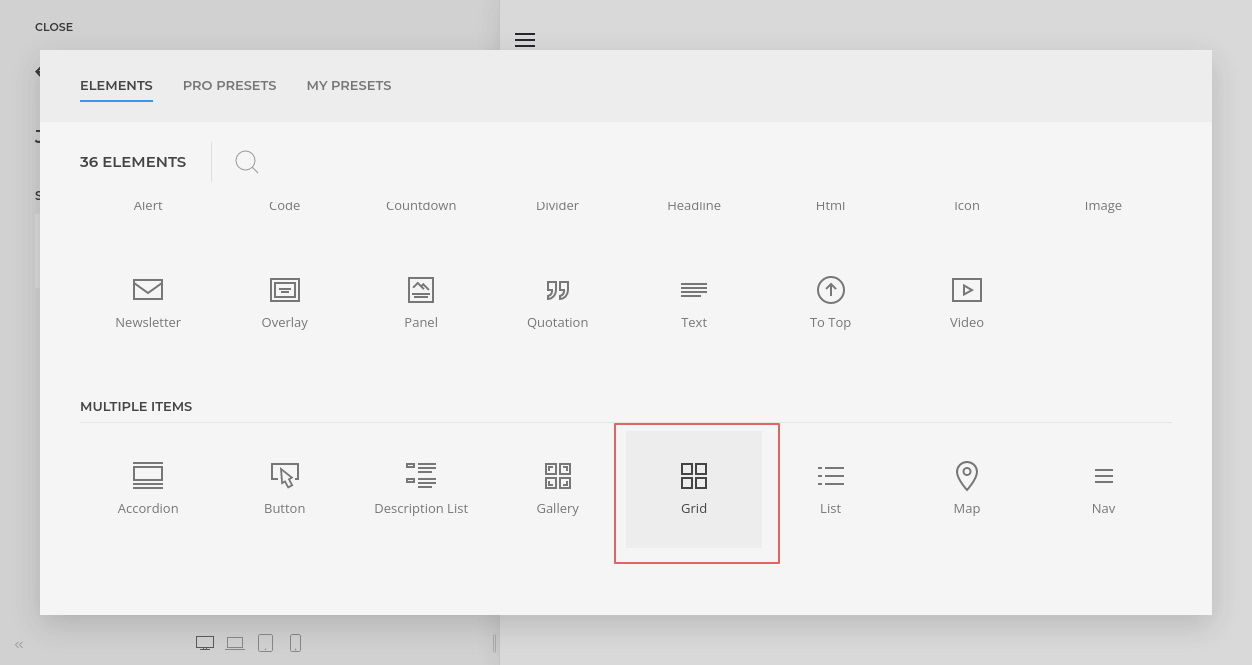
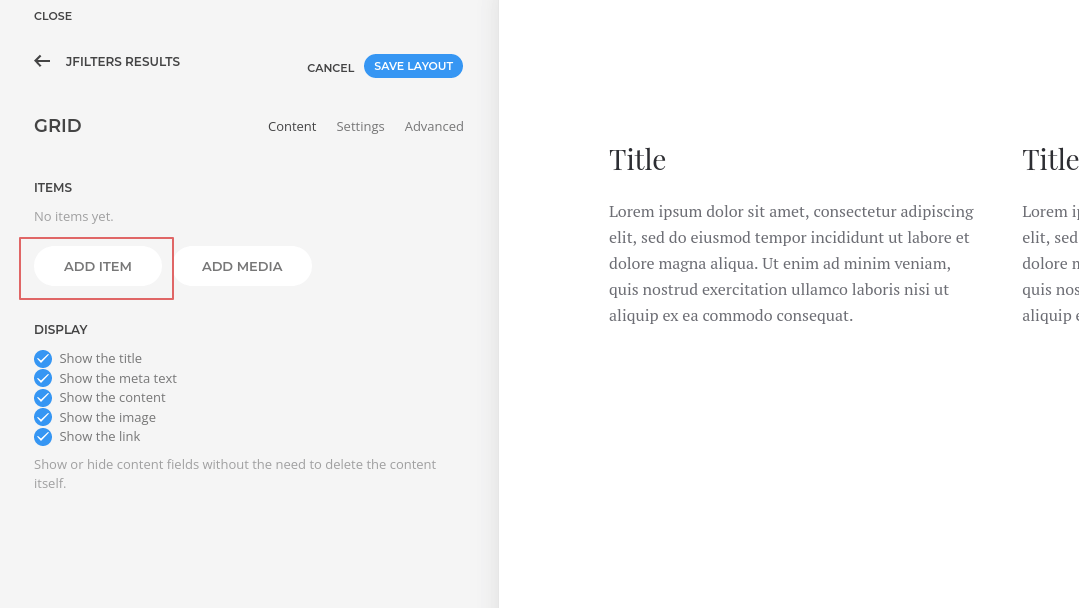
Click on the "Grid" element and then on "ADD ITEM" button.
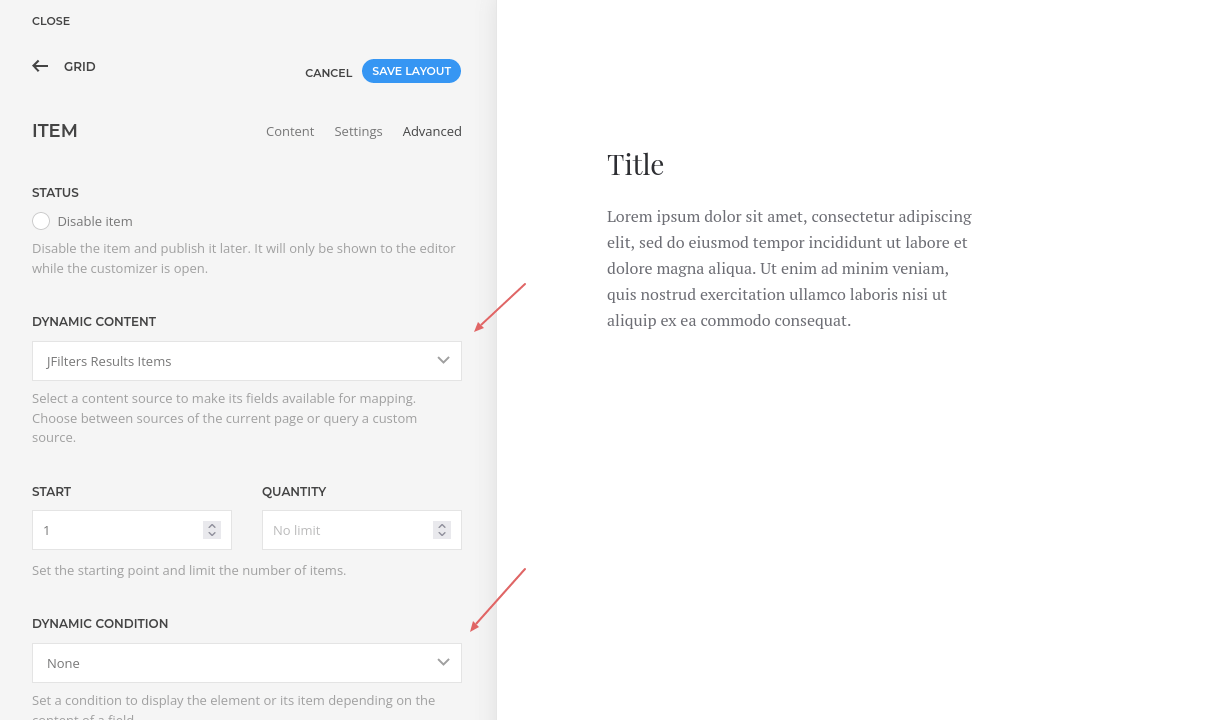
Then go to the "Advanced" tab and from the Dynamic Content drop-down, select JFilters Results Items.
The next step, is to map each of the Grid's items to a JFilters results item.
To do that, go to the Content tab, and for each of the shown fields, press the Dynamic link, at their right top corner and select the field that you want to map for that grid's element, from the list.
After that, you should see the grid populating the results. Just save your layout and you are done.
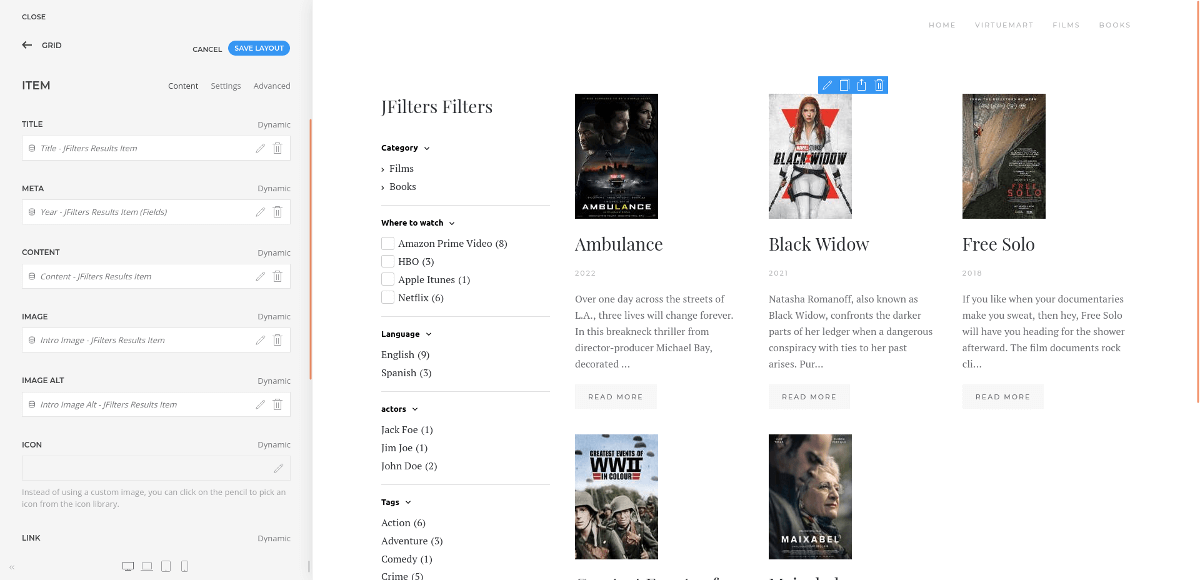
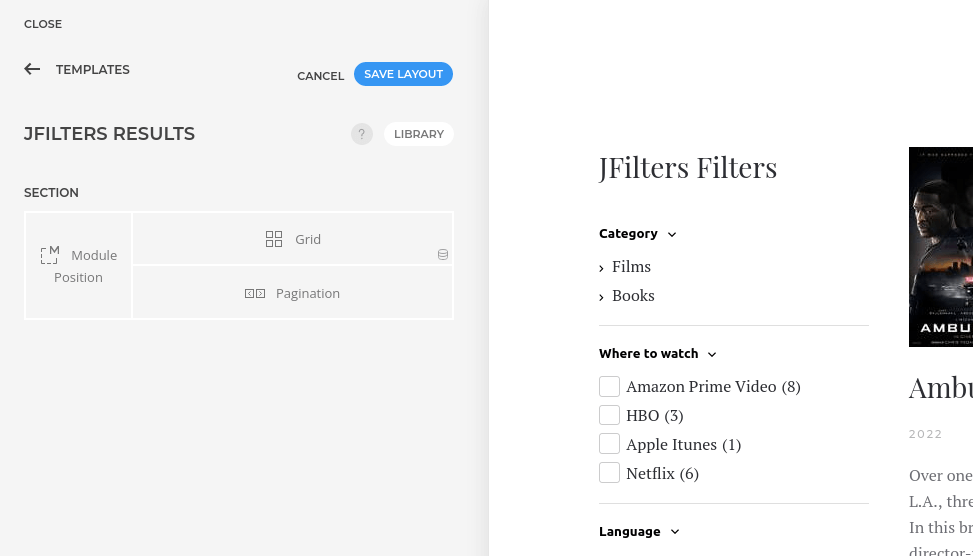
Don't forget to add a pagination element to your layout. The final layout should look like this:
Add a Sorting Element
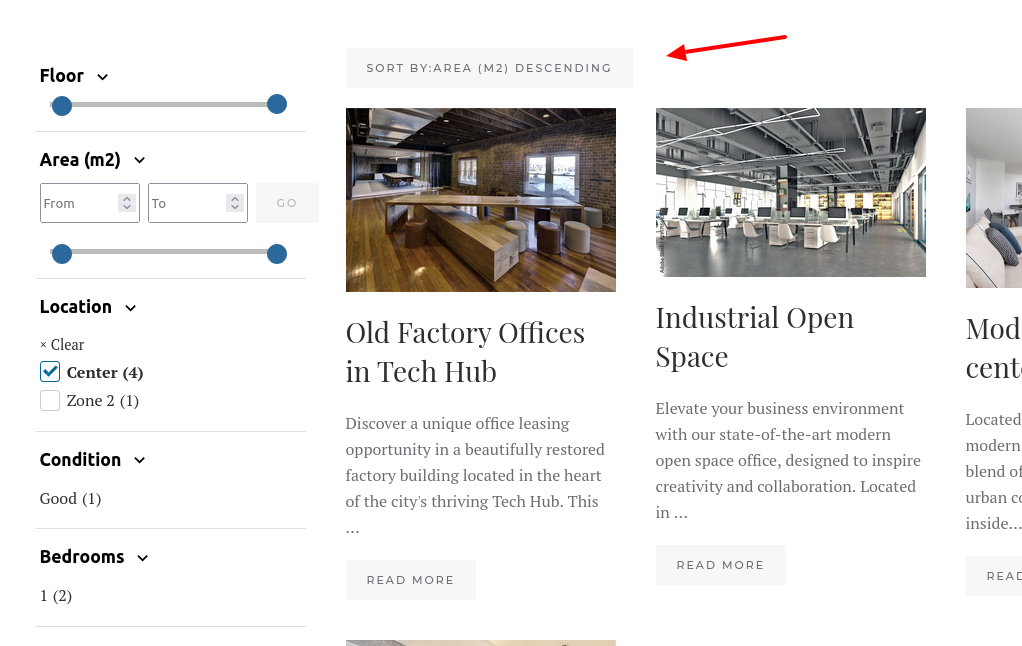
As you may know, you can sort the JFilters results by various ways, using the quite powerful Sorting Rules feature.
The Sorting Rules allows you to either enforce a mandatory default sort order or display a drop-down menu for your users to choose their own.
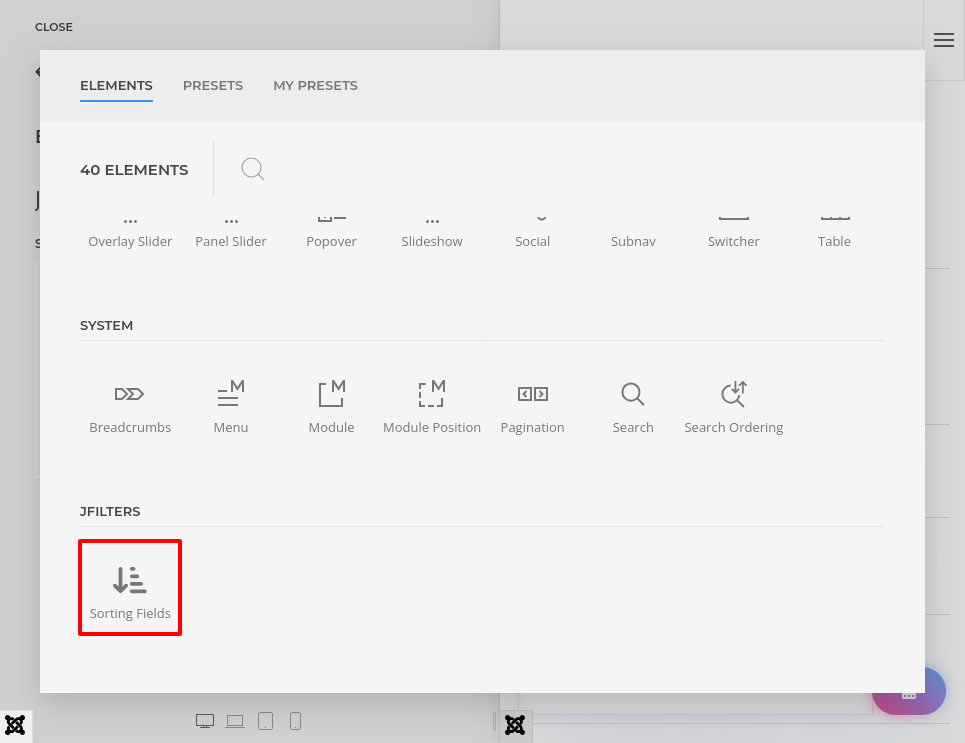
To display such a drop-down element in YOOtheme PRO, you have to use the "Sorting Fields" element.
Miscelaneous
If you want to have more control over the way the results are presented, consider using the YOOtheme PRO Sublayout element, instead of the Grid.
Using a Sublayout, you can create a layout that will be replicated for each result item.
You can find more on the following video: https://www.youtube.com/watch?v=BXCv59Wp9Z4
We just scratched the surface of what you can do with YOOtheme Pro. To learn more on it, please visit the official YOOtheme PRO page.